From your first file to a reviewed export
Choose the local table workflow for CSV and Excel, or set up Pro automation for recurring PDFs. Each illustrated step points to a control in the current workspace.
The workflow diagrams are illustrations. The later interface screenshots use fictional sample data, not a real account.
Clean a CSV or Excel file
Start with one file. You can inspect suggested changes before applying them, then export a copy.
01Open and inspect
- Sign in and select Open file in the top toolbar. Choose a CSV, XLSX, or XLSM file.
- For Excel files, confirm the sheet and header row in the import preview. Check the row and column counts after loading.
02Review, clean, export
- Select Review cleaning plan, compare original and proposed values, then apply only the rules you want.
- Use Manual review for issues that need judgment. Open History if you need to inspect or restore an earlier step.
- Export CSV or Excel after checking the result. Keep the source file as your original copy.
For a repeatable workflow, save a recipe after the result looks right. The sample guides provide files and verified outputs you can compare. View practical guides
Process recurring PDF documents
This workflow requires an active Pro subscription and configured cloud processing. Text PDFs and scanned pages may follow different recognition paths.
03Prepare a rule
- First prepare a saved field-mapping structure and cleaning recipe in the workspace.
- Open Document inbox, select New rule, then choose the target structure and recipe.
- Add allowed senders for email delivery. Leave that field blank if the rule is for browser upload only; set an upload default if needed.
04Deliver, review, export
- Upload a PDF in the browser or send it as an attachment to your dedicated inbox address from an allowed sender.
- Find the file under Processing batches. If the rule match or extracted result is uncertain, open the record and confirm it before continuing.
- Open the completed result, check it against the source PDF, then export CSV or Excel. Review OCR results manually.
If Upload PDFs or email delivery is unavailable, check your Pro status and the capability notice inside Document inbox. View Pro plan
Try one PDF rule end to end
Use a fictional, selectable-text PDF before routing real documents. Cloud results still require a source check.
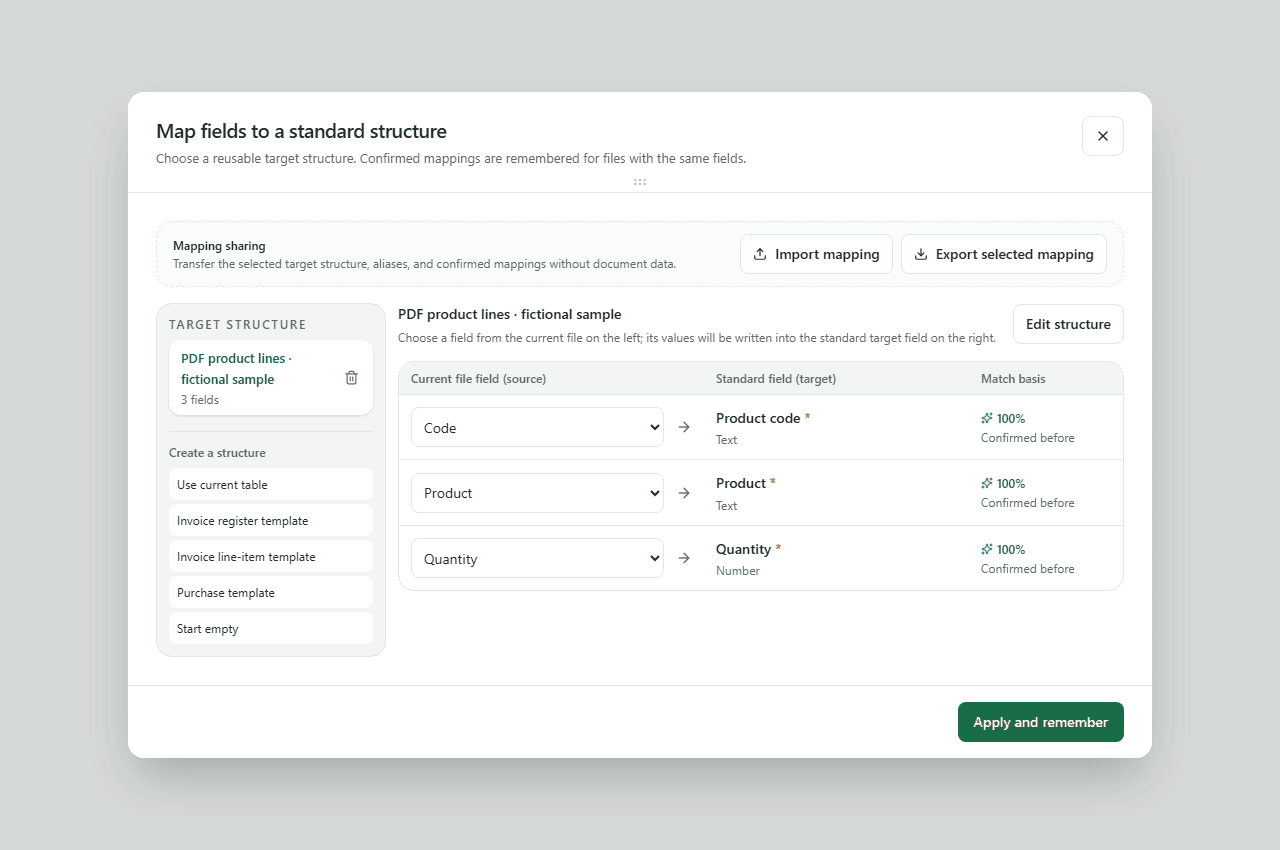
- MapOpen the sample PDF, select the Code / Product / Quantity table, then open Field mapping. Create a target structure from the current table and choose Apply and remember mapping.
- Save a recipeCheck the three columns and 12 data rows. Use Recipes to save the processing steps you actually want to repeat; avoid adding a cleanup step solely for this sample.
- Create a ruleIn Document inbox → New rule, enter a name, choose that target structure and recipe, and Save rule. For this browser test, leave allowed email senders empty and choose Use for uploads.
- Upload and verifyUnder Upload PDFs, add the sample. Wait for Processing batches to show Completed; resolve any Needs review item. Compare the result with the PDF and CSV: Code P001–P012, 12 rows, no repeated second-page header. Export only after they match.
The 12-row reference is verified for local extraction. If the cloud run differs, treat it as a review item rather than an automatic success. Pro and cloud processing must be enabled for the upload step.
Save, move, and restore a workspace
Pick the storage path that matches your goal; exporting CSV or Excel is a result file, not a workspace backup.
| Where | Do this |
|---|---|
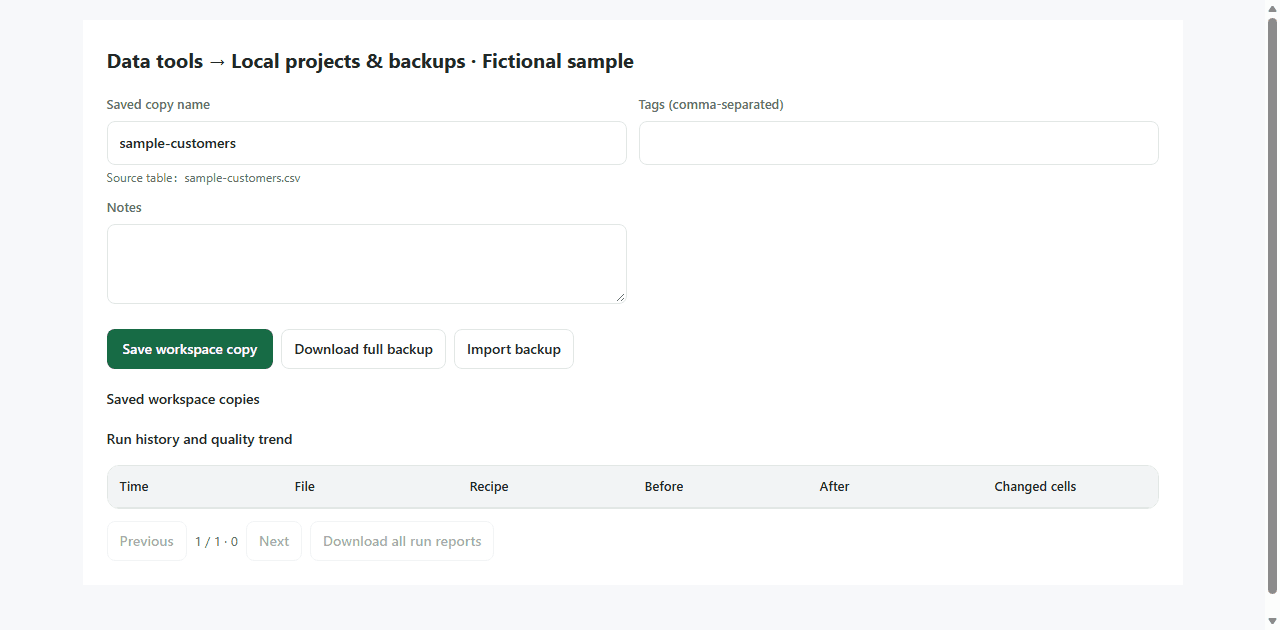
| This browser | Data tools → Local projects & backups → Save workspace copy. Return to this list and choose Open. Clearing site data or changing devices can remove the local copy. |
| Your own backup file | Choose Download full backup and keep northmeld-project.json safely. On another device, use Import backup, then Open the imported copy. Keep the source PDF separately: the JSON backup does not include its original file bytes. |
| Cloud project · Pro | Data tools → Cloud projects: create a project or save a new version. Reopen it from the project list after signing in. It is separate from browser copies and downloaded backups, with its own permissions. |
Quick check: import your JSON backup once in a test browser and open it. Confirm the table, history, recipe, and review decisions before you rely on it for a device move.
Find the controls on real screens
Captured from the current components with fictional sample data. These screens show the controls, not a real user account or a completed cloud run.
Troubleshoot by what you see
Check the visible status first; retry only after the cause is clear.
| What you see | Check | Next action |
|---|---|---|
| Upload PDFs unavailable | Pro status, processing capability notice, saved rule and upload default | Enable the available capability or select a usable rule; then retry a small sample PDF. |
| Email never appears | Dedicated address, exact sender, daily limit, Email delivery notices | Correct the sender list or address; resend only after the notice explains the rejection. |
| Rule match uncertain / Needs review | Matched target structure, source PDF, extracted values and page boundaries | Open the item, choose the right rule or correct the values, then confirm. Do not export an unverified result. |
| Export blocked | Manual review findings and this rule’s minimum quality score | Resolve required findings against the source. Change the threshold only when the business rule truly requires it. |
Still stuck? Send support the step, visible error, and a redacted file name—never a password or backup key.
Where to find each tool
Use these exact labels in the workspace when a diagram shows only part of the screen.
| Goal | Where to go |
|---|---|
| Import CSV, Excel, or PDF | Top toolbar → Open file |
| Standardize fields or manage cloud projects | Top toolbar → Data tools |
| Save or run repeatable processing | Top toolbar → Recipes |
| Check unresolved findings | Top toolbar → Manual review |
| Configure PDF delivery and monitor batches | Top toolbar → Document inbox |
| Inspect payments or manage renewal | Account menu → Billing |
Saving, privacy, and help
Local tables
CSV and Excel work starts in your browser. Use local backups when moving devices; cloud projects are a separate feature with their own access settings.
Cloud PDF processing
Uploaded files and email attachments use private cloud storage. Review important source documents and exports before using them for business decisions.
Need help?
Use the sample guides for specific file types, or contact support with the step and error message you see.
Contact support